User Manual
Shellfish Harvest Extent Latitude, Longitude, Information
aka. The SHELLI
The Shellfish Harvest Extent, Latitude, Longitude Information (hereafter referred as ‘SHELLI’) is an application that allows the CSSP staff to:
· Look at the different layers within the CSSP
· Add or remove data from the database
· Notify other CSSP staff that a change has occurred
This user manual will outline the different aspects of the SHELLI and how they function. Please jump to the appropriate chapter of interest.
Table of Contents
7. Core workflow 4 : Initiate Revocation
8. Core workflow 5 : Concur Revocation
9. Core Workflow 6 : Complete Revocation
10. Core workflow 7 : Create VO
11. Core workflow 8 : Delete VO
12. Launching the public website
1. Design and access
The SHELLI is an application that includes:
· a series of data layers,
· configuration files hosted on a DFO It server,
· map documents projecting the data,
· 2 internal websites for CSSP staff
· 2 public websites
· A series of modules to interact with the data
1.1 Live environment
The live environment can be accessed following these links:
|
Internal website |
|
|
Public website |
https://www.dfo-mpo.gc.ca/shellfish-mollusques/cssp-map-eng.htm https://www.dfo-mpo.gc.ca/shellfish-mollusques/cssp-map-fra.htm |
The SHELLI is designed for the desktop interface, using MS Edge and Google Chrome. There currently is no interface adapted to mobile or tablet use.
1.2 Test environment
The SHELLI also has a testing environment. Users can access it using one of the supplied login credentials and practice any aspect of the Live environment. Note that this space is designed to be unstable. Disconnections and difficulty loading elements is expected.
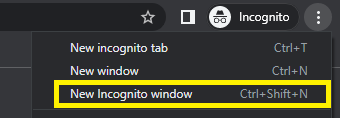
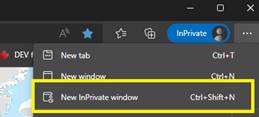
N.B. Users must use a web browser’s incognito mode in order to access the test environment. Failure to do so can accidentally load the live environment cached in the browser.
|
TEST internal EN |
https://egist.dfo-mpo.gc.ca/vertigisstudio/web/?app=665f901398374b9ba4a551f08b3263fd&locale=en |
|
TEST internal FR |
https://egist.dfo-mpo.gc.ca/vertigisstudio/web/?app=f83a870f09464b50bbf01f6da378f158&locale=fr-CA |
|
TEST public EN |
https://egist.dfo-mpo.gc.ca/vertigisstudio/web/?app=84572c5703a24d0cbe062d2d7ba126d7&locale=en |
|
TEST public FR |
https://egist.dfo-mpo.gc.ca/vertigisstudio/web/?app=d29ff20b8e6d4421815174fc2fbb0e07&locale=fr-CA |
|
Tier 1 access – GC key |
|
|
GC Key |
User will have to create their own GC key for the TEST environment as well as the Live environment |
|
Password |
Configure your own password |
|
Tier 2 access - DFO ArcGIS Portal |
|
|
User Name |
TEST_ECCC TEST_CFIA TEST_Pacific TEST_Quebec TEST_Gulf TEST_Maritimes TEST_NFLD |
|
Password |
Please contact an ADMIN for the password |
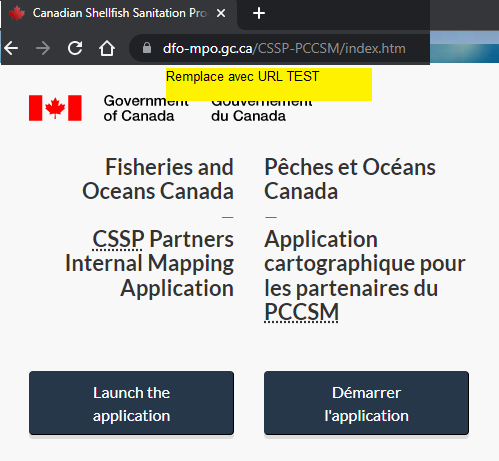
N.B. if the user gets disconnected and sees this screen :
 ,
,
The user must
re-enter the URL, or close the browser and start all over. Navigating back to
the SHELLI via this menu will attempt to launch the Live environment.
1.3 Launching the internal website
Tier 1 access (viewing the data)
1. Enter the URL (live or test environments)
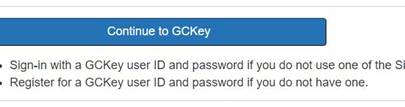
2. Continue to GC Key
3. Enter the GC Key credentials
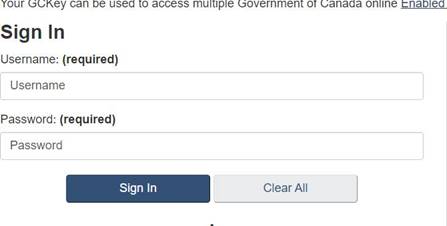
4. Answer the security question if it comes up
5. The base site will load the map and data layers. Tier 1 access complete
Tier 2 access (ability to modify the data)
After finishing tier 1 access, a popup will appear asking you to login a 2nd time with the tier 2 credentials
Enter the tier 2 credentials
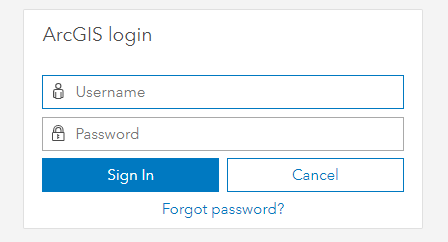
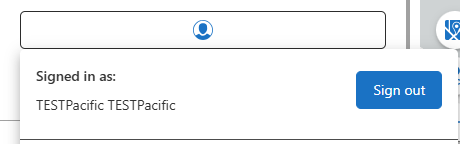
The map should load, click on the user icon to confirm your are in fact logged in with your account
2. Permissions
The SHELLI has a permissions scheme that will slightly modify the user experience.
Each tier 2 user is assigned an ‘agency’. There are four agencies:
· ADMIN
· CFIA
· ECCC
· DFO
Additionally each user is assigned a set of ‘regions’. There are five regions:
· Pacific
· Quebec
· Gulf
· Maritimes
· Newfoundland
A user must belong to one agency and a set of regions.
2.1 Workflow access
Access to the workflows depends on the user’s agency. A user will be able to see all the workflows, and try to run them. However the workflow will immediately exit if the user does not have permission to continue.
|
Workflow Name |
CFIA |
ECCC |
DFO |
|
C1: Submit |
X |
X |
X |
|
C2: Review |
|
|
X |
|
C3: Activate |
|
|
X |
|
C4: Initiate Revocation |
X |
X |
X |
|
C5: Concur Revocation |
X |
X |
X |
|
C6: Complete Revocation |
|
|
X |
|
C7: Create VO |
|
|
X |
|
C8: Delete VO |
|
|
X |
2.2 Reason Code Rationale
Below is the rationale behind each reason code.
1. Biotoxin / Biotoxines
Closure following the observation of high levels of biotoxin(s)
Long term closure of an area with a known history of high toxicity
High biotoxin events and deviations from sampling (long or short term, planned or unplanned)(CSSP 4.2.1) (Pacific region)
Used by/utilisé par : CFIA / DFO
2. Cessation of Biotoxin monitoring / Arrêt de suivi des biotoxines
Short term closure due to lack of sampling : end of season (aquaculture areas), impossible to sample on a regular basis (bad weather, samplers unavailable, etc.)
Used by/utilisé par : CFIA / DFO
3. Chemical / Chimique
This code is used when chemical contaminants are discharged or present in a shellfish area.
Used by/utilisé par : CFIA / ECCC / DFO
4. Sanitary (conditionally managed area / Pollution sanitaire (géré sous condition)
The conditions for harvesting safe shellfish in a conditionally managed area are not met, such as:
• a wastewater treatment plant or collection system fails or is bypassed
• a rainfall threshold is exceeded
• the water quality has deteriorated with a change in season
Used by/utilisé par : ECCC/DFO
5. Sanitary (emergency) / Pollution sanitaire (urgence)
An emergency situation includes unusual weather, flooding, spills of sewage.
· Significant meteorological phenomenon (eg heavy precipitation).
· Municipal wastewater unplanned discharge
· Pathogenic Illness
Used by/utilisé par : CFIA/ECCC/DFO
6. Sanitary (shellstock) / Pollution sanitaire (stock de mollusque)
Closure caused by unacceptable microbiological sample results in shellfish (CSSP sections 6.3 and 6.4)
Used by/utilisé par : CFIA/ECCC/DFO
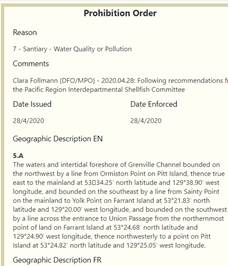
7. Sanitary (water quality or pollution source) / Pollution sanitaire (qualité de l’eau ou source de pollution)
The concentration of fecal coliforms in seawater exceeds the criteria of the CSSP. Presence of bacteriological sources of pollution.
Used by/utilisé par : ECCC/DFO
8. Conservation
Assigned to other closure types on the SHELLI map related to conservation
Used by/utilisé par : DFO
2.3 Revocation Permission Grid
The revocation workflows follow a specific permission process. If CFIA initiates a revocation, then ECCC must concur, and vice versa (see the grid below). DFO can initiate and concur any prohibition order. The Revocation workflows restrict what is displayed based on the combination of reason code and region associated with the user’s permissions. In the event that a user from CFIA or ECCC attempt to concur a prohibition already initiated by someone else from their own agency, an error message will appear.
|
# |
Reason |
CFIA initiates |
ECCC initiates |
CFIA must concur |
ECCC must concur |
|
1 |
Biotoxin |
yes |
|
|
|
|
2 |
Cessation of biotoxin monitoring |
yes |
|
|
|
|
3 |
Chemical |
yes |
Yes |
Yes |
yes |
|
4 |
Sanitary (cond. Managed) |
yes |
yes |
yes |
yes |
|
5 |
Sanitary (emergency) |
yes |
yes |
yes |
yes |
|
6 |
Sanitary (shellstock) |
yes |
|
|
yes |
|
7 |
Sanitary (water quality / pollution) |
|
yes |
Yes |
|
|
8 |
Sanitary and Biotoxin |
yes |
yes |
Yes |
yes |
3. 
Internal interface
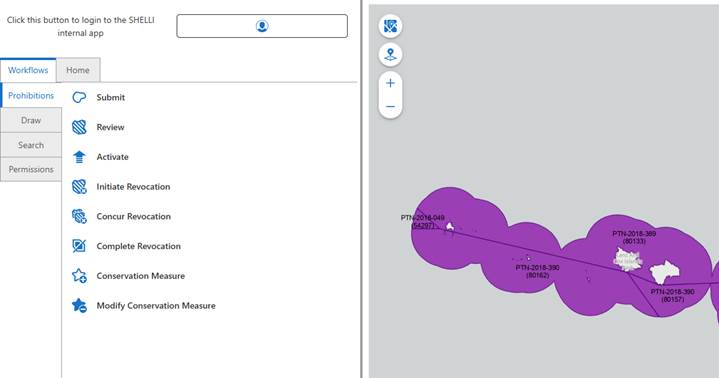
The internal interface has many elements that allow you to interact with the map.
The left panel includes a workflow pane with the following tabs:
The Prohibition tab houses the launch point of the 6 Prohibition Orders modules and 2 conservation modules
The Draw tab houses buttons to draw on the map
The Search tab houses the search modules allowing you to query the data
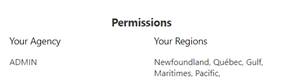
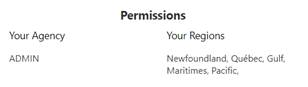
The Permissions tab houses the user permissions module.
And it includes a layers pane that lists the visible data layers on the map.
4. Core workflow 1 : Submit
The submit workflow is used by CFIA, ECCC, or DFO
This workflow allows the user to submit a recommendation for a new Prohibition Order.
|
Step |
Description |
||||
|
0. Setup |
Select the Prohibition Orders… tab
|
The Prohibition Orders tab shows the core workflow buttons. Select ‘submit’ to start the workflow.
|
|||
|
|
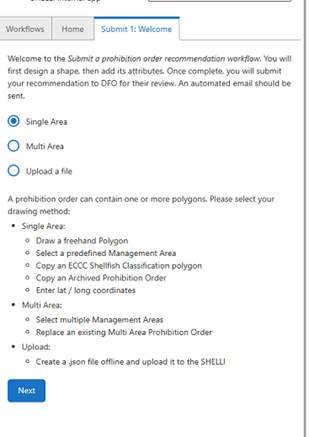
This is the launch menu, it provides a brief overview how to proceed. The Submit workflow has three branches to follow, either a single area submission, a multi area submission, or uploading a polygon.
Select the option you prefer and click next to proceed. |
||||
|
2. Draw Single |
|||||
|
Click on Map
|
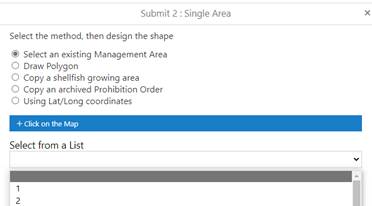
After selecting “single area”, you are brought to this menu.
Changing the selected radio button will change which sub menu is visible.
The default option is to select an existing management area (from polygons stored in the Management Area database).
Options called up are based on user’s region permissions.
You can either click on the map, or select from the list.
Clicking on the map adds a token to display. Adds markup polygon + details to user interface
Selecting an option in the drop down will auto populate the list of sectors.
Clicking on an item in the list will zoom to the location, add a markup polygon, and add details.
|
||||
|
Click draw polygon
|
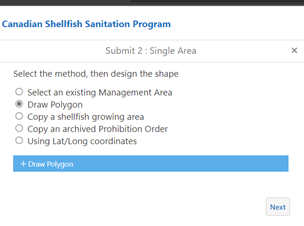
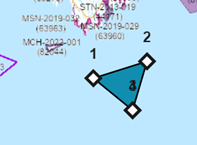
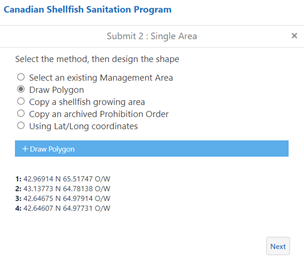
Draw polygon option.
The menu items will change. Click the blue button ‘Draw Polygon’, and then click at multiple points on the map.
Once the sketch is completed, it is removed and replaced with a markup polygon.
The coordinates of the vertices are added to the display. |
||||
|
Click on map
|
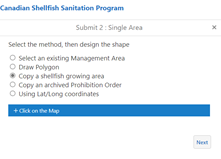
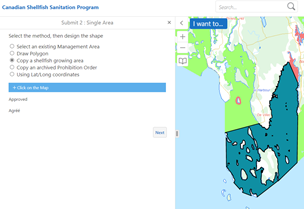
Selecting this option allows you to copy a classification polygon supplied by ECCC.
Click on the blue button and then click on themap.
A token is placed on the map and reproduces a polygon in the ECCC classification layer.
The classification of this polygon is added to the menu.
You can repeat the process and merge the classified polygons into a large mass. |
||||
|
|
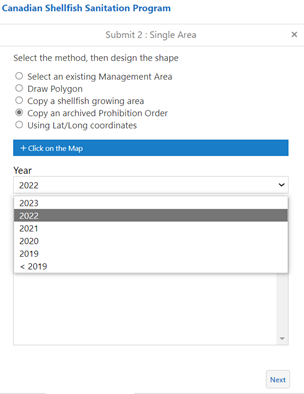
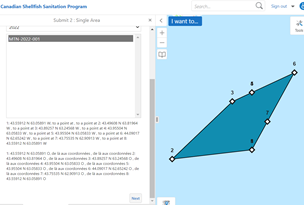
Selecting this option allows you to reproduce a previously issued prohibition order.
You may either click on the map or select from a list.
By clicking on the map, a token is placed on the map and reproduces the first polygon found in the PO archive as a markup polygon.
Data from archive is copied over to the session.
Alternatively you can select the year the prohibition order was issued from the year dropdown menu. Clicking on the listed Prohibition Order will copy it from the archive and add it to the map. |
||||
|
|
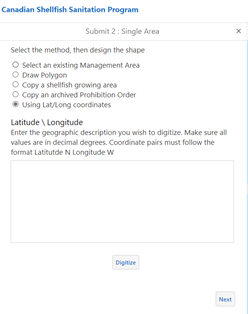
Selecting this option adds a text area and a ‘digitize’ button.
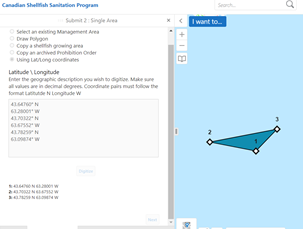
Input a series of coordinate pairs, or an entire paragraph containing a geographic description.
Click digitize to add a polygon using these coordinates.
The coordinates must be written in decimal degrees, with latitude first and longitude second. N and O or W must be used to denote latitude and longitude respectively.
n.b. French spelling using commas to denote decimal places won’t work. Replace commas with periods. |
||||
|
|
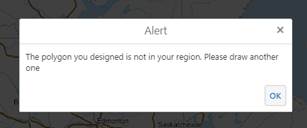
If the drawn polygon has its centroid in a location that is not in the region associated with the user, this alert appears.
|
||||
|
3. Attributes |
|||||
|
|
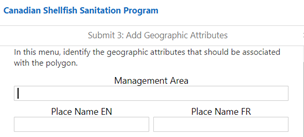
If the submission is drawn using a predefined management area or an archived prohibition order then these fields will be already filled in.
Fill in the details as required, or leave them blank.
|
||||
|
|
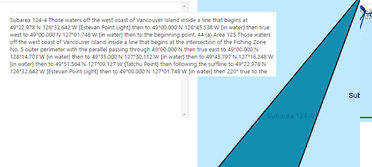
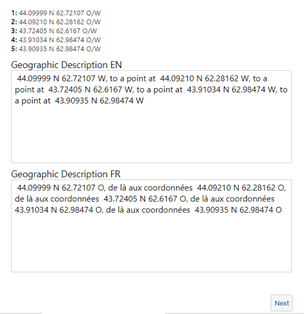
If the polygon already has geometry information, it will be reproduced here in the English and French descriptions.
Otherwise fill them in as much as possible. |
||||
|
Multi Area PO |
|||||
6. Draw Multi Area PO |
|
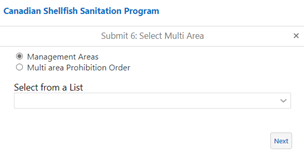
If you selected ‘draw using a multi are a prohibition order’ in menu 1, you will see this menu next. Two options are on offer, either drawing a prohibition order based on existing management areas, or by an existing multi area prohibition order. |
|||
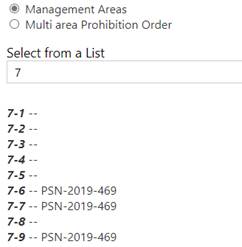
6.1 Select from a list of Management Areas |
Use drop down to select from list,
Click next
|
Selecting an area populates all of the subareas in a list, with an indication if there is an active Prohibition Order in the management area or not. |
|||
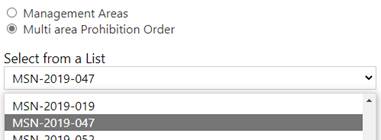
6.2 Select from a Multi Area prohibition Order |
Click next |
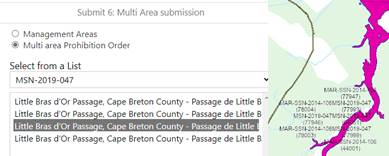
Selecting this option populates the drop down list with multi area prohibition orders found in the user’s region.
Then a list will display all polygons contained within this multi area PO, and list them by place name EN and FR Selecting the item will zoom to the location |
|||
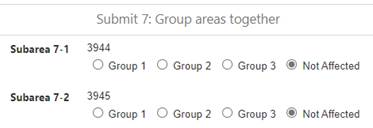
7 Assign Group |
|
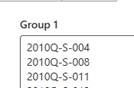
Now the user must group together all the selected polygons to build a submission. A grid appears to assign the polygons into groups. By default all polygons are assigned the ‘not affected’ option. You can select which group to assign each polygon. In the following menu’s you will be able to assign a reason code and species list to each group. Once completed, the software will colour each polygon based on the assigned group. Unaffected polygons are given a translucent white colour and not stored in the temporary dataset. Clicking next will allow you to modify the geometry attributes in step 3. |
|||
|
Upload |
|||||
8 |
|
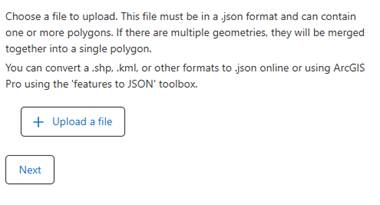
If you selected ‘Upload a file’ in menu 1, it will bring you to Submit 9 ‘upload a polygon’. |
|||
8.1 |
|
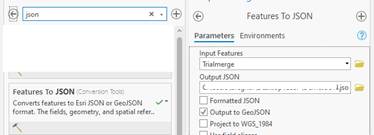
In ArcMap, ArcGIS Pro or some other geo spatial software. Create a feature class with one or more polygons within.
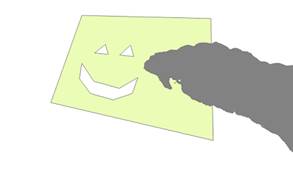
**MAKE SURE YOU SELECT THE FEATURES YOU WANT TO EXPORT** (it is possible to create a JSON with no features) |
|||
8.2 |
|
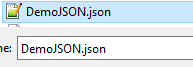
Export this feature class as a .json or GeoJson format |
|||
8.3 |
|
Upload the export and the SHELLI will use the features as the geometry basis for the recommendations |
|||
8.4 |
|
The JSON is converted into the geometry for the SHELLI. The SHELLI will automatically merge all of the polygons into one. |
|||
|
4. Species |
|||||
|
Contact information should match the login information |
This menu will allow you to assign a reason code and define the species list for the submission.
The User Name and Email supplied here based on your user credentials. |
||||
|
Hidden if step 2 completed, visible if step 6 completed (see table 2) |
|||||
|
|
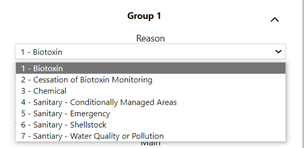
Drop down with reason code options. Select the reason for creating this submission.
The list of reason codes differs based on the user permissions. Consult the Permissions section for more details.
|
||||
|
|
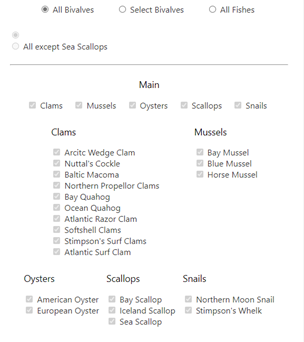
You may now modify the list of species included in the submission. The final list is solely based on which species is checked or unchecked.
However, selecting the ‘all bivalves option’ will automatically check off all the species. This is the default option.
Selecting one of the category options (clams, Mussels, Oysters, Scallops, Snails) will check or uncheck all the species in this category.
|
||||
|
|
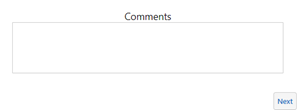
Enter the comments explaining why the submission is being done. Each RISC has its own protocol for what should get entered here.
Your name and the date will automatically be added afterwards. |
||||
|
5. Summary |
|||||
|
|
This menu will reproduce what has been stored in the app memory prior to updating the database. If there are any mistakes you can restart and wipe the temporary data entry. |
||||
|
|
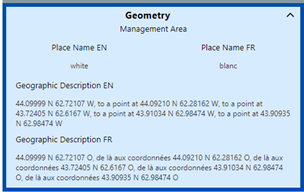
This menu outlines the geometry attributes entered. |
||||
|
|
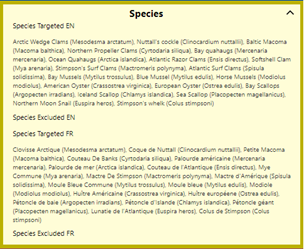
This submenu outlines the species list included in the submission. |
||||
|
|
This submenu outlines whether a revocation will be initiated as a consequence to issuing this prohibition order. |
||||
|
5.5 |
|
If you want to tag a PO for revocation, click the Submit 8 button. If you want to modify the reason or species, click the Submit 4 button. If you want to restart all together, click the restart button. |
|||
|
|
If a prohibition order should also be revoked in conjunction with this submission. Clicking the ‘revoke’ button in the previous menu will bring you here. You will be shown a list (per submission group), where you may select the name of the prohibition order to revoke.
This will mimic the initiate revocation step. |
||||
|
10. End sequence |
|||||
|
|
If you click ‘submit’ at the summary screen, the temporary data will be written to the database. A pop up appears if this is successful. |
||||
|
|
After writing to the database, the application will now process the initiate revocation step if there is one. Then it will build the subscriber list and generate the automated e-mail. The temporary memory is cleared, and the map is reset. Once all this is done, a success popup appears. |
||||


Scenario: Disaggregating a multi area prohibition order
Imagine you have a prohibition order with multiple locations and your goal is to modify the geometry of one of the locations within:
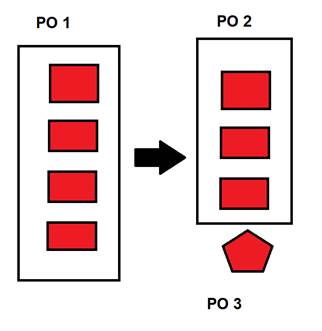 |
The goal is to take the single prohibition order and issue a stand alone PO with the new geometry, and a second PO with all the remaining locations.
To accomplish this.
Step 1: Create a submission for a single area PO with the new geometry. This new geometry can be supplied by a GeoJSON, or one of the drawing methods in the single area submission process. This will create PO 3 with the new geometry.
Step 2: Create a second submission using the multi area Prohibition Order method. This will create PO 2 with all the remaining locations.
Step 3: Select the multi area PO (PO1) that you wish to replace
Step 4: Place all the locations in this PO into Group 1.
Step 5: Remove the location in the new submission from Group 1 and set it as ‘not affected’. It is being covered by Step 1.
Step 6: Include the appropriate attributes for this new submission.
Step 7a: Select PO1 for revocation at the end of the submit workflow.
or
Step 7B: Select PO1 in the review workflow for revocation.
Once complete,
you will have initiated the revocation of PO 1, submitted PO2 and PO3. Make
sure to activate them in sync.
5. Core workflow 2 : Review
In this workflow you can review a submission completed at the ‘submit’ step. You will add other details like correcting the geographic description, defining the signing authority, and outlining the issuance and enforcement dates.
|
Step |
Description |
||||
|
0. Setup |
Select the ‘review’ button in the prohibition orders tab.
|
The review workflow will run. If you don’t have permission to proceed a popup will appear and the workflow will close. |
|||
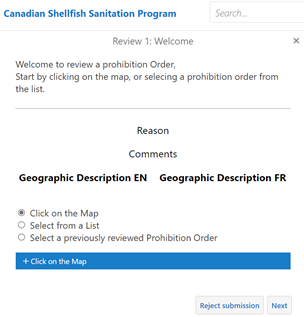
|
|
In the first menu you can pick one of three options to proceed. Select the one you wish before proceeding. |
||||
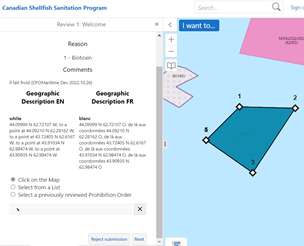
|
|
If you select ‘click on map’, you may click on the blue button and select the submission prohibition order on the map.
You will place a token on the map. A polygon is added to the display, and attributes are added to the display.
|
||||
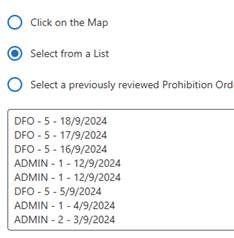
|
|
If you select this option a list will appear with all of the submissions associated with your region. They are sorted by the Agency who submitted, the reason code, and the date of submission.
Clicking on an item will center the map and add markup outlining the submission.
Attributes are added to the display. |
||||
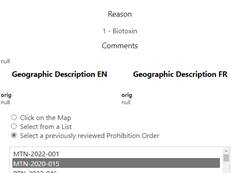
|
|
Clicking on items in the list will center the map on the selected geometry. Attributes are added to the appropriate field. Changing selection will change attributes |
||||
|
|
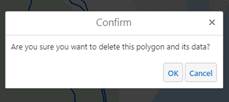
Clicking button makes a popup appear to confirm rejection. If yes, polygon is deleted, cannot be selected again. |
||||
|
2. Reshape |
|||||
|
|
You can now reshape the supplied geometry. This drop down menu is hidden if only one polygon is in the submission. Otherwise select the polygon you wish to redraw. |
||||
|
|
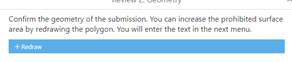
Click on the blue button and then redraw the polygon on the map. A popup appears after you are done to confirm the sketch. The two shapes will be merged together. |
||||
|
Once you click ‘next’ the app will perform two major operations.
First, if the supplied polygon needs to be cut along the coastline, it will run the clipping algorithm. This will overlay the reference land layer and remove all intersection with ‘land’. Once the clip is completed, new coordinates will be calculated and replace the supplied geographic description.
Second, the application will now calculate the appropriate Prohibition Order Number. This will be generated based on the reference PO Timeline table, calling up the list of all Prohibition Orders issued so far this year, and computing the next one in the list. It will then construct the number by extracting the first letter of the DFO Region’s name, adding the letters TN for biotoxin related prohibitions, CH for chemical related prohibitions and SN for sanitary related prohibitions, add in the current year, and finally the document in sequence. |
|||||
|
3. Attributes |
|||||
|
|
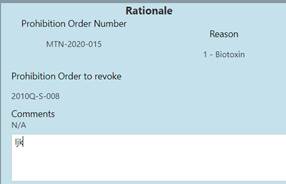
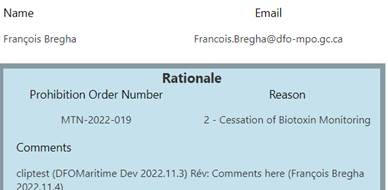
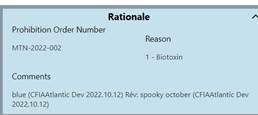
The rationale for the prohibition is displayed. You will see the reason code, the computed prohibition order, the PO flagged for revocation, and the comments supplied at the Submit step.
Please include your comments based on the review. |
||||
|
|
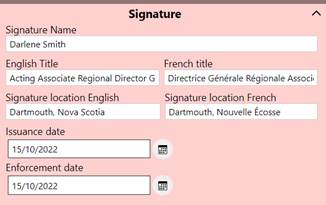
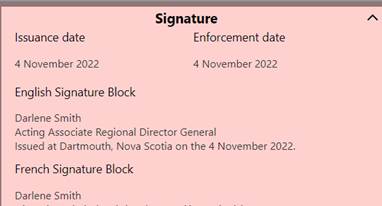
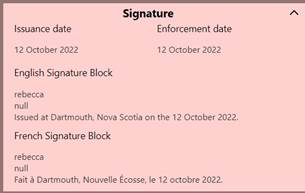
In the Signature sub-menu, you are asked to include details on the signature block.
The Signature Name is an autocomplete form. As you type the desired name, it will search the database and autopopulate if it finds the name in the SHELLI database.
Otherwise you can write the desired name, title, and location.
You must then define the issuance and enforcement dates. By default the enforcement date is the same as the chosen Issuance date. Click the calendar to open up a date menu, or write the date directly in the format DD/MM/YYY |
||||
|
|
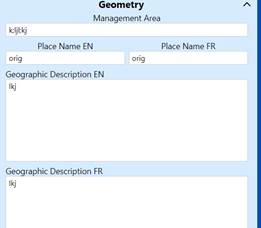
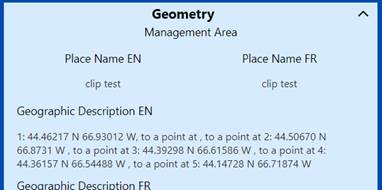
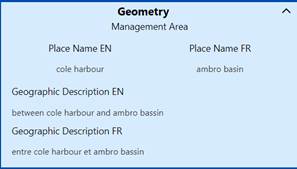
In this submenu you can rewrite the geographic details.
The details stored in the database are pre-populated, and you can rewrite them at will. |
||||
|
|
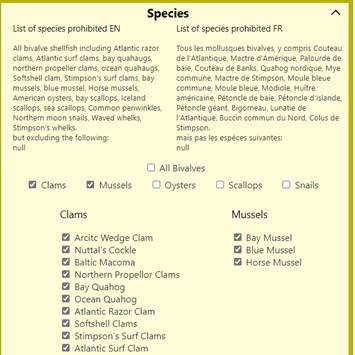
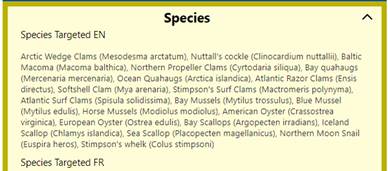
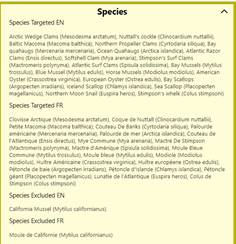
In this sub-menu you will see the list of species affected by the prohibition order.
You may modify this list by checking or unchecking any item on the list.
Selecting the ‘All Bivalves’ option has two effects. 1. IT will add this phrase to the longform species description. 2. It will cause the final polygon to display with an opaque red to the general public.
Not selecting this option will instead omit the phrase, and cause the polygon to display with a red and transparent hatching. |
||||
|
3.5 Revocation |
|
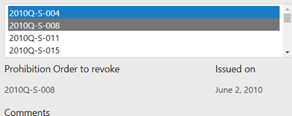
By default this menu is greyed out. If you want to revoke a prohibition order in tandem to the current submission select ‘yes’. Then scroll through the list and select the desired Prohibition Order number.
When clicking on an tiem, the map will zoom to the location in question and add markup to the map. |
|||
|
Once you click next the application will perform two major operations.
First it will calculate the dates based on the chosen Issuance and Enforcement dates. The output is a text string (day month year) in both languages, as well as the final datestamp to be added to the database.
Second it will run the pdf generators. These will create a preview of the prohibition orders available in the next menu. Each pdf generator can take a while, loading times vary based on your connection to the server. |
|||||
|
4. Summary |
|||||
|
|
In this menu you will see the data entered so far. If there are any errors, you can start over by clicking the ‘Restart’ button.
In this sub-menu you will see the details of the rationale. |
||||
|
|
In this sub-menu you will see the details of the Signature |
||||
|
|
In this sub-menu you will see the details of the Geometry |
||||
|
|
In this sub-menu you will see the details related to the species. |
||||
|
|
In this sub-menu you will see details related to the revocation.
Clicking next will imitate the ‘Initiate Revocation’ workflow for the selected prohibition order. |
||||
|
|
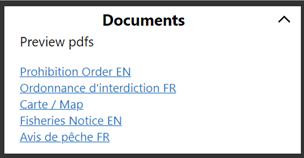
In this sub-menu you can preview the pdfs generated.
Click on the hyperlink to open a new tab and download the generated pdf. There are five supplied links to investigate.
If no pdf is generated, the link will simply open the internal map.
|
||||
|
5. End sequence |
|||||
|
|
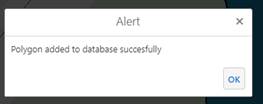
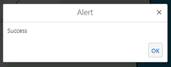
If you click ‘submit’ at the summary screen, the temporary data will be written to the database. A pop up appears if this is successful. |
||||
|
|
|
After writing to the database, the application will now process the initiate revocation step if there is one. Then it will build the subscriber list and generate the automated e-mail. The temporary memory is cleared, and the map is reset. Once all this is done, a success popup appears. |
|||

6. Core workflow 3 : Activate
In this workflow you get to review the Prohibition Order once last time before it is issued.
|
Step |
Description |
||||
|
0. Setup |
Select the ‘Activate’ Button in the Prohibition orders tab.
|
||||
|
1. Intro |
|||||
|
|
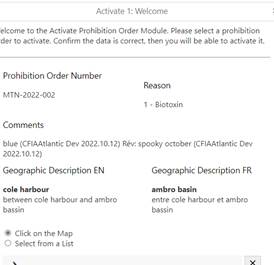
In this menu you can select the Prohibition Order to activate.
By default you can click on the map. Select the blue button and click on the desired polygon to activate. Markup is added onto the map confirming your selection. Rationale attributes are added to the menu to tell you what is associated with this polygon.
|
||||
|
|
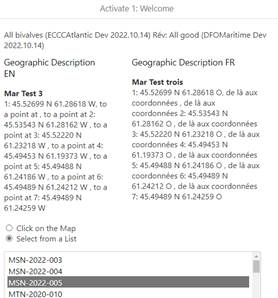
Alternatively you can select by a list. A list of all Prohibition Orders ready to be activated is displayed, and you can select the desired one.
Markup is added onto the map confirming your selection. Rationale attributes are added to the menu to tell you what is associated with this polygon. |
||||
|
2. Last Review |
|||||
|
|
In this summary menu you can see the details of the prohibition order.
This sub-menu will display the rationale of the Prohibition Order. |
||||
|
|
This sub-menu will display the signature information of the Prohibition Order. |
||||
|
|
This sub-menu will display the geometry information of the Prohibition Order. |
||||
|
|
This sub-menu will display the species information associated with the prohibition order. |
||||
|
|
This sub-menu will display if a revocation is done in consequence to issuing this prohibition order.
If so, don’t forget to complete the revocation workflows to finish processing the polygon! |
||||
|
|
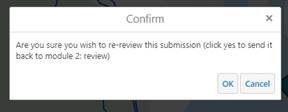
If there are errors, you can click the re-review button. Doing so will cause the prohibition order to be flagged for the ‘review step’. You can then load the review workflow and complete all the steps another time. |
||||
|
The application will now build pdfs associated with this prohibition order based on the supplied information. |
|||||
|
3. Activate |
|||||
|
|
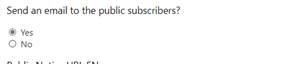
Completing the activate prohibition order workflow sends emails to two lists : the internal subscription and public subscription.
If you select the ‘no’ option here, the public email will be suppressed and no notification will be sent. By default the ‘yes’ option is selected. |
||||
|
|
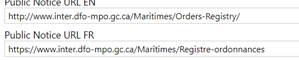
The reference URL is supplied here. Each region has a different default stored in the database. |
||||
|
|
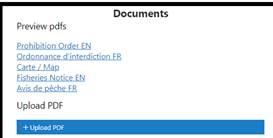
The pdf preview is shown in this sub-menu. Click on the hyperlink to open a new browser tab to display the generated pdf.
IF you wish to upload a pdf of the final prohibition order you can. It will replace the autogenerated one displayed in the hyperlinks.
If no pdf is generated, clicking on the hyperlink will simply open the internal map in a new tab. |
||||
|
4. End sequence |
|||||
|
|
If you click ‘submit’ at the summary screen, the temporary data will be written to the database. A pop up appears if this is successful. |
||||
|
|
After writing to the database, the application will build and send the emails. The temporary memory is cleared, and the map is reset. Once all this is done, a success popup appears. |
||||

7. Core workflow 4 : Initiate Revocation
In this workflow you may initiate the revocation of a prohibition order.
|
Step |
Description |
|||||
|
0. Setup |
Select the ‘Initiate Revocation’ button from the prohibition orders tab.
|
|
||||
|
1. Intro |
||||||
|
|
Your experience will change based on the permissions associated with your account. CFIA, ECCC, and DFO have different abilities to initiate a revocation.
For more details please see the permissions section of this manual. |
|||||
|
|
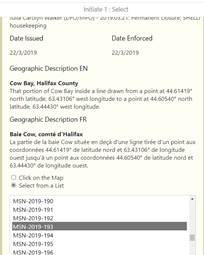
By default you can click on the map. Click the blue button and then place a token on the map.
If a valid polygon can be selected, a markup polygon is added and some of the attributes are displayed in the menu.
|
|||||
|
|
You can also select from a list of all activated prohibition orders.
Select the desired prohibition order, the map will zoom and add markup on the map. Attributes contained in this record are displayed in the menu. |
|||||
|
2. Submit |
||||||
|
|
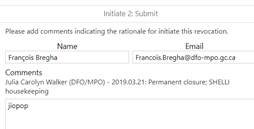
In this menu you must add your comments to the prohibition order. Explain why you wish to initiate the revocation. The comments already contained are displayed on the screen, as well as your username and e-mail. |
|||||
|
3. End sequence |
||||||
|
|
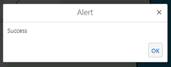
If you click ‘submit’ at the summary screen, the temporary data will be written to the database. A pop up appears if this is successful. |
|||||
|
|
After writing to the database, the application will build and send the emails. The temporary memory is cleared, and the map is reset. Once all this is done, a success popup appears. |
|||||
8. Core workflow 5 : Concur Revocation
All prohibition orders require a mix of initiation and concurrence in order to be removed from the map. This workflow will allow you to concur a prohibition order that has passed the initiate revocation step.
|
Step |
Description |
||||
|
0. Setup |
Select the ‘Concur Revocation’ button from the Prohibition Orders tab. |
||||
|
1. Intro |
|||||
|
|
Your experience will change based on the permissions associated with your account. CFIA, ECCC, and DFO have different abilities to initiate a revocation.
For more details please see the permissions section of this manual. |
||||
|
|
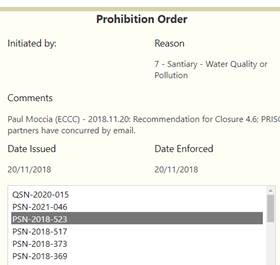
You can select from a list of all ‘initiated’ prohibition orders.
Select the desired prohibition order, the map will zoom and add markup on the map. Attributes contained in this record are displayed in the menu. |
||||
|
2. Submit |
|||||
|
|
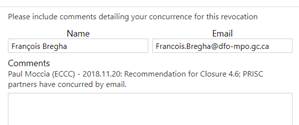
In this menu you must add your comments to the prohibition order. Explain why you wish to concur the revocation. The comments already contained are displayed on the screen, as well as your username and e-mail. |
||||
|
2.2 Cancel Revocation |
|
If for some reason the revocation cannot proceed, clicking this button will reset the revocation entirely. The PO will be available in Workflow 4 – Initiate revocation to restart the revocation process. |
|||
|
3. End sequence |
|||||
|
|
If you click ‘submit’ at the summary screen, the temporary data will be written to the database. A pop up appears if this is successful. |
||||
|
|
After writing to the database, the application will build and send the emails. The temporary memory is cleared, and the map is reset. Once all this is done, a success popup appears. |
||||
9. Core Workflow 6 : Complete Revocation
In this workflow you can finalise the details of the revocation. Once completed the prohibition order data will be migrated to the archive, and removed from the main display.
|
Step |
Description |
||||
|
0. Setup |
Select the ‘Complete Revocation’ from the prohibition orders tab
|
||||
|
1. Intro |
|||||
|
|
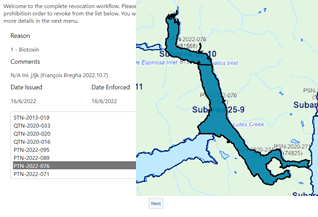
You can select from a list of all ‘concurred’ prohibition orders.
Select the desired prohibition order, the map will zoom and add markup on the map. Attributes contained in this record are displayed in the menu. |
||||
|
2. Details |
|||||
|
|
In this section define the date the revocation will take place, and the date it comes into force. By default the current system date is added. If you want to modify, either type in a new date, or select one by clicking on the calendar button. |
||||
|
|
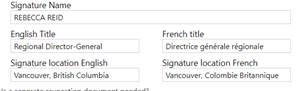
The Signature Name is an autocomplete form. As you type the desired name, it will search the database and auto populate if it finds the name in the SHELLI database.
Otherwise you can write the desired name, title, and location. |
||||
|
|
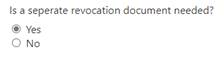
If this is a stand alone revocation, then a revocation pdf must be generated. Select the yes option.
However if a prohibition order is being activated which also revokes another one in consequence, then a stand alone pdf is not needed. In this case, you must complete the digital transaction to match what has been done on paper. Select the ‘no’ option. |
||||
|
Once you click next the application will perform two major operations.
First it will calculate the dates based on the chosen Issuance and Enforcement dates. The output is a text string (day month year) in both languages, as well as the final datestamp to be added to the database.
Second it will run the pdf generators. These will create a preview of the prohibition orders available in the next menu. Each pdf generator can take a while, loading times vary based on your connection to the server. |
Converts user input (Unix time) into text strings EN and FR for Date Revoke is Issued, and date Revoke comes into force. |
||||
|
3. Summary |
|||||
|
|
This sub-menu will show the rationale associated with the prohibition order. |
||||
|
|
This sub-menu will show the signature details associated with this revocation. |
||||
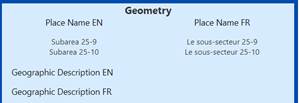
|
|
This sub-menu will show the geometry details associated with this prohibition order. |
||||
|
|
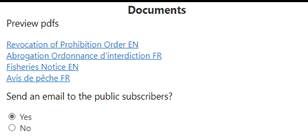
The pdf preview is shown in this sub-menu. Click on the hyperlink to open a new browser tab to display the generated pdf.
If no pdf is generated, clicking on the hyperlink will simply open the internal map in a new tab.
Completing the complete revocation workflow sends emails to two lists : the internal subscription and public subscription.
If you select the ‘no’ option here, the public email will be suppressed and no notification will be sent. By default the ‘yes’ option is selected. |
||||
|
4. End sequence |
|||||
|
|
If you click ‘submit’ at the summary screen, the temporary data will be written to the database. A pop up appears if this is successful. |
||||
|
|
After writing to the database, the application will build and send the emails. The temporary memory is cleared, and the map is reset. Once all this is done, a success popup appears. |
||||

10. Core workflow 7 : Create Conservation Measures
This workflow will allow you to add or modify polygons stored in the conservation measures database. These polygons will allow you to communicate harvest prohibitions due to a conservation measures in the country. They can be tailored to target specific groups and species.
|
Step |
Description |
||||
|
0. Setup |
Select the ‘conservation measure’ button from the Prohibitions tab.
|
||||
|
1. Start |
|||||
|
1.1 select new or existing |
|
In this menu you can choose whether to create a brand new polygon or modify an existing one.
The menus in the Modify Existing option are described in step 5. |
|||
|
2. New Polygon |
|||||
|
2.1 Select MGMT Area |
|
The first step is define the geometry of the polygon.
You can select an existing management area either by clicking on the map or selecting from the list.
Click the blue button, and then place a token on the map. If a mangemetn area is present, it will be copied and some temporary markup is added to the map. The geographic description will display in the menu.
The dropdown menu shows the list of management areas. Select the one of interest. Then click on the desired sector. The screen will zoom to the location, and add the temporary markup to the display. The geographic description is added to the menu. |
|||
|
2.2 Draw Polygon |
|
You can draw the polygon. To do so click on the blue button and then click on the map. A polygon will appear.
Once completed, temporary markup is added to the map and the coordinates are added to the menu. |
|||
|
2.3 Using Lat Long coordinates |
|
Selecting this option adds a text area and a ‘digitize’ button.
Input a series of coordinate pairs, or an entire paragraph containing a geographic description.
Click digitize to add a polygon using these coordinates.
The coordinates must be written in decimal degrees, with latitude first and longitude second. N and O or W must be used to denote latitude and longitude respectively.
n.b. French spelling using commas to denote decimal places won’t work. Replace commas with periods. |
|||
|
2.4 Clip, add coordinates |
Once you click ‘next’ the application will clip the polygon.
If the supplied polygon needs to be cut along the coastline, it will run the clipping algorithm. This will overlay the reference land layer and remove all intersection with ‘land’. Once the clip is completed, new coordinates will be calculated and replace the supplied geographic description. |
||||
|
3. Attributes |
|||||
|
3.1 Rationale |
|
In this menu you can now define the attributes of the conservation measure.
Assign a polygon a duration (indefinite, seasonal, emergency).
By default a conservation measure prohibits harvest regardless of harvester type and harvest method.
Indicate if a group should be excluded from this measure.
If there are special notes regarding the method, insert them in the box.
Add in internal and public comments as needed to communicate with the public. Include any special size or quota notes in the public comments section if needed.
|
|||
|
3.2 Dates |
|
Specify the timing associated with the measure.
The polygon will only be visible to the public if the following are true: 1. the polygon is ‘active’ 2. the current date is between the start and end date |
|||
|
3.3 Geometry |
|
In this sub-menu you can define the geometry attributes. These fields are pre-populated with data supplied from the database. You can rewrite them as needed. |
|||
|
4. Species |
|||||
|
You must now define which species are affected by this measure |
|||||
|
4.1 Target species |
|
Check off each species that is affected by the conservation measure. If all bivalves are affected, be sure to check off ‘all bivalves’.
You can click the ‘clams’ to select all types of clams, or ‘mussels’ to select all mussels etc. |
|||
|
5. Documents |
|||||
|
5.1 Documents |
|
Add in the Name that will appear on the SHELLI interface in English and French.
Add in a URL if there is a web link to connect to this conservation measure. |
|||
|
6. Modifying Existing |
|||||
|
6.1 Click on Map |
|
You can click on the map. To do so click on the blue button and then place a token on the map. If a valid polygon is selected, temporary markup is added to the display. |
|||
|
6.2 Select from List |
|
You can select from a list. A dropdown menu appears, select the desired polygon type. Then a list of all polygons of that type in your region will appear. Clicking on the item will zoom to the location and add temporary markup.
Once complete you will move to step 3 and 4 to finish completing this workflow. |
|||
|
7. Summary |
|||||
|
7.1 Rationale |
|
This sub-menu will reflect the rationale associated with this polygon. |
|||
|
7.2 Geometry |
|
This sub-menu will repeat the geometry details associated with the polygon. |
|||
|
7.2 Dates |
|
This sub menu will repeat the date information associated with the polygon. |
|||
|
7.3 Species |
|
This sub-menu will repeat the species information associated with the polygon. |
|||
|
7.4 |
|
This sub-menu will repeat the document information associated with the polygon. |
|||
|
8. End Sequence |
|||||
|
|
If you click ‘submit’ at the summary screen, the temporary data will be written to the database. A pop up appears if this is successful. |
||||
|
|
After writing to the database the temporary memory is cleared, and the map is reset. Once all this is done, a success popup appears. |
||||

















11. Core workflow 8 : Modify Conservation Measure
This workflow allows you to modify or remove polygons in the Conservation database. It is meant to be a short and quick way to remove them from public view.
|
Step |
Description |
||||
|
0. Setup |
Select ‘Modify Conservation Measure’ from the menu
|
||||
|
1. Deactivate |
|||||
|
1.1 Click on map |
|
You can click on the map. To do so click on the blue button and then place a token on the map. If a valid polygon is selected, temporary markup is added to the display. |
|||
|
1.2 Select from list |
|
You can select from a list. A dropdown menu appears, select the desired polygon type. Then a list of all polygons of that type in your region will appear. Clicking on the item will zoom to the location and add temporary markup. |
|||
|
2. Delete |
|||||
|
2. Delete |
If you want to permanently delete the polygon, click the ‘delete’ button. A confirmation pop up appears. If you confirm, the polygon is permanently deleted. |
||||
|
3. Deactivate |
|||||
|
3.1 Polygon status |
|
Select the desired status of the polygon. If active = no, then the polygon will never be displayed to the public. |
|||
|
3.2 Date |
|
The dates stored in the database are supplied. Modify them as needed to change the issuance, start, and end dates. |
|||
|
4. End Sequence |
|||||
|
|
If you click ‘submit’ at the summary screen, the temporary data will be written to the database. A pop up appears if this is successful. |
||||
|
|
After writing to the database the temporary memory is cleared, and the map is reset. Once all this is done, a success popup appears. |
||||




12. The Public website
The public website is accessible here:
En: https://www.dfo-mpo.gc.ca/shellfish-mollusques/cssp-map-eng.htm
FR : https://www.dfo-mpo.gc.ca/shellfish-mollusques/cssp-map-fra.htm
It displays the following data layers:
A map of Canada (supplied by NRCan)
The ECCC water quality classification layer
- Approved and conditionally approved polygons are green
- Restricted, Conditionally Restricted, and Prohibited polygons are red
The Prohibition Order layer
(if the current day is after the enforcement day)
- Prohibition orders targeting ‘all bivalves’ are red
- Prohibition orders not targeting ‘all bivalves’ are cross hatched red
The Archived Prohibition Order Layer
(if the current day is before the revocation enforcement day)
- Prohibition orders targeting ‘all bivalves’ are red
- Prohibition orders not targeting ‘all bivalves’ are cross hatched red
The Variation Order Layer
(if the polygon is ‘active’ and the current day is in between the start and end dates)
- Baseline polygons are invisible
- Annual polygons are red
- Variation order polygons are red
- CMP trigger event polygons are cross hatched yellow and black
The Management Area layer
-
 All
polygons are a purple outline with the name of the management area in the
middle
All
polygons are a purple outline with the name of the management area in the
middle